One of my friend whose whole world revolves around Python has a saying, “Python is the second best language for everything”
I haven’t heard anything truer. Python second best language for everything. Are there languages faster? Yeah. Are there languages richer in features? True. But no language allows you to go from ideation to a proof of concept nearly as fast as python. And given the way it reads, no other language is more friendly to people who don’t code for a living, thus making for a perfect language for automating the boring stuff away.
Thus I thought to share a few things that I use regularly to automating the boring stuff out of my own workflows.
Are these the best ways to do it? No. I mean, see the title!
Today I would like to show how you can employ python to do a lot of stuffs with Google Sheets. But before we can get to the code, we need to do some setup.
Setup
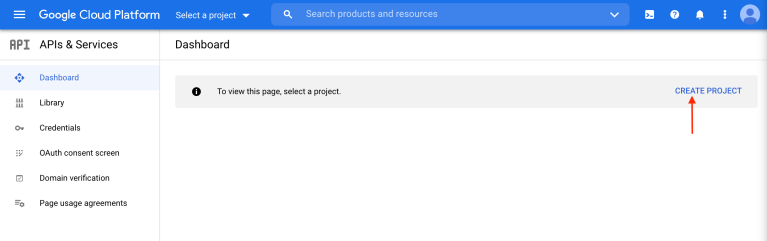
- Go to the google cloud console and create a new project.
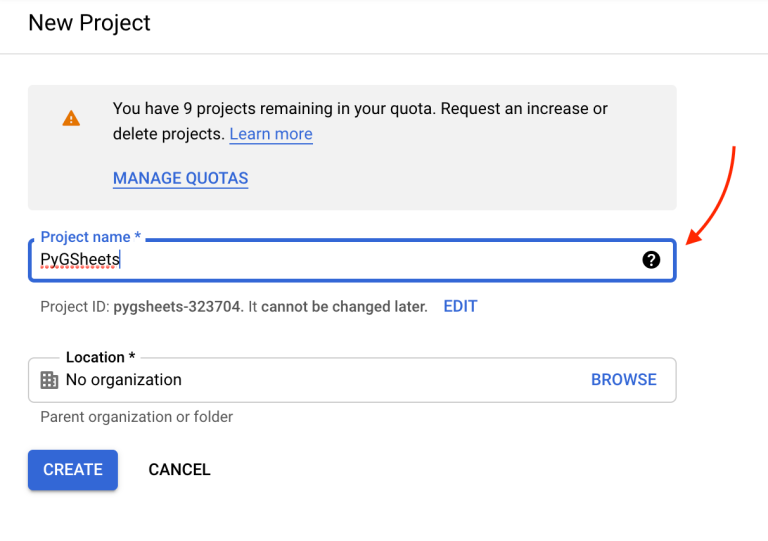
- Give project a name and click Create. Once you do, select the newly created project from your notifications.
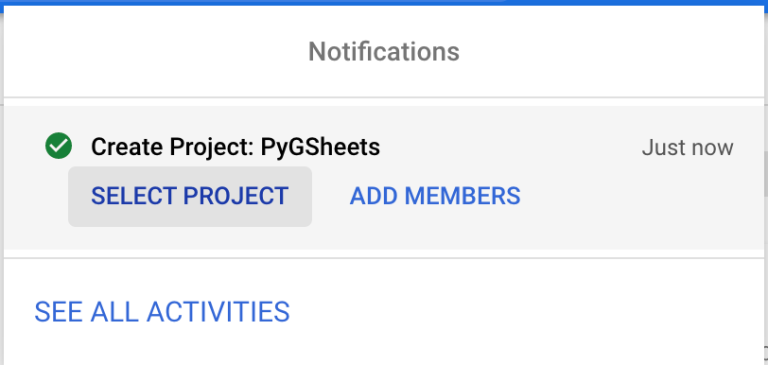
- Upon selecting the project, you’ll land on the project dashboard. Here you need to Add two APIs
- Google Sheets API
- Google Drive API
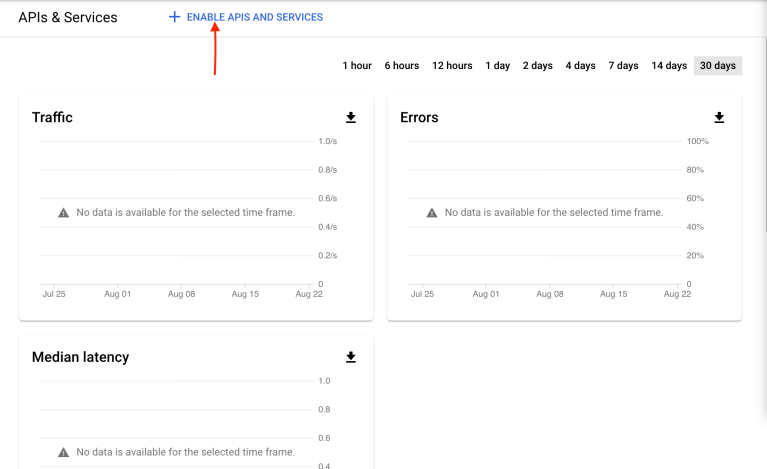
To Add Sheets API, First click on Enable APIs and Services on the Project Dashboard.
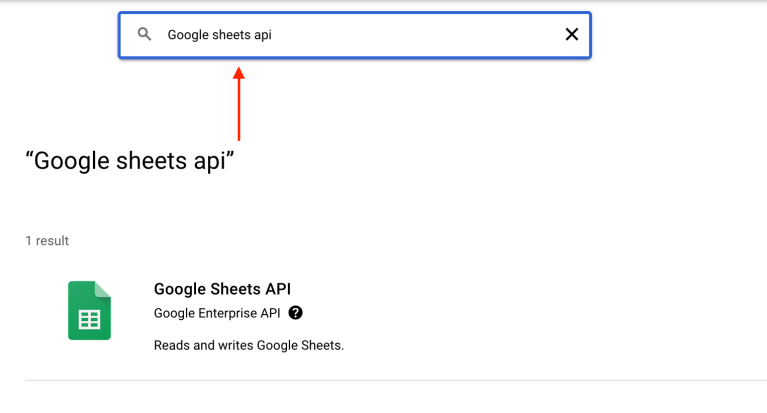
Then search for Google Sheets API
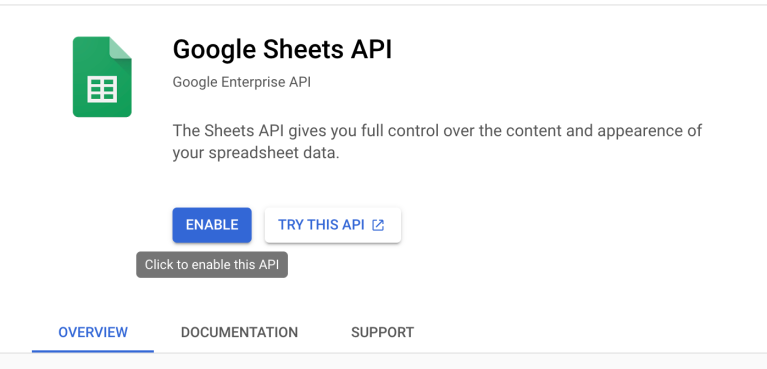
And enable the API on the API Page.
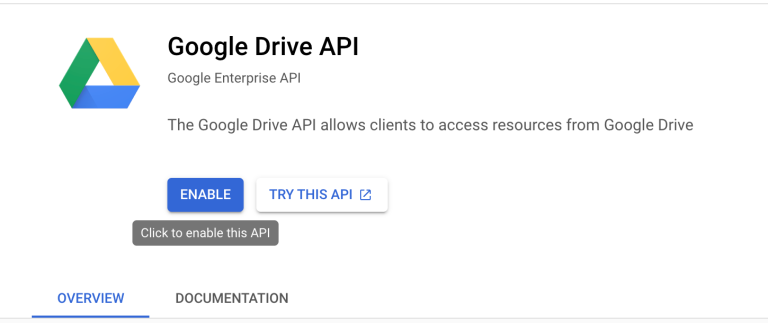
Similarly you can enable the Google Drive API
- Now you need to create credentials for it. Go back to Project Dashboard and click on Create Credentials.
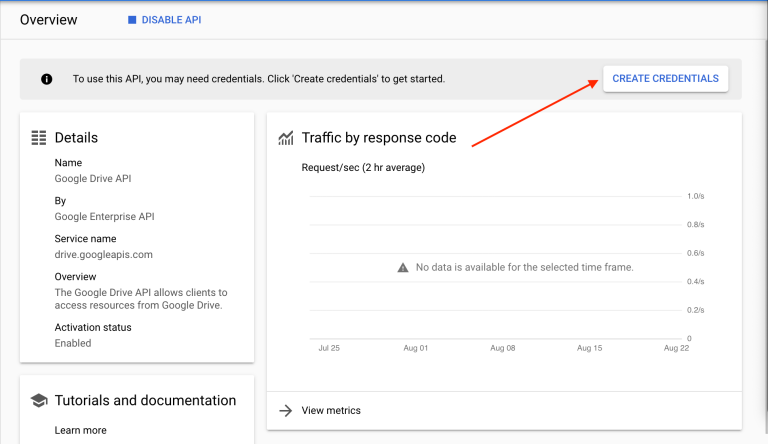
- Therein, setup credentials by selecting Google Drive API in the dropdown, select the Application Data radio button and since we won’t be using it with any Compute or Cloud service (for now), select No in the options for the same.
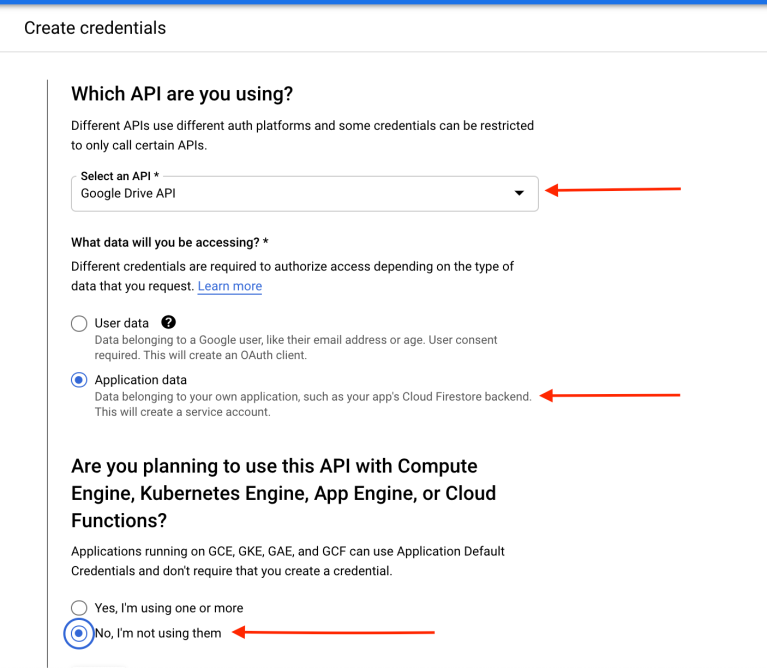
- Now, you’ll need to create a service account and get credentials for it. Give it a name and description if you like and skip the rest for now. Then click Done.
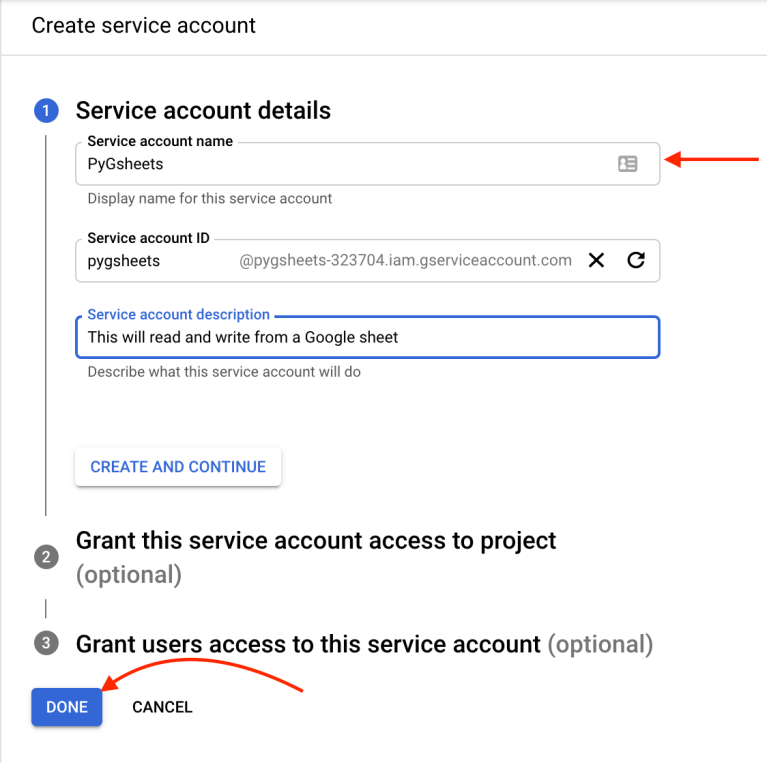
- You should then land on the Credentials screen, where you’ll see the service account you just setup. Click on the Configure Consent Screen button to continue.
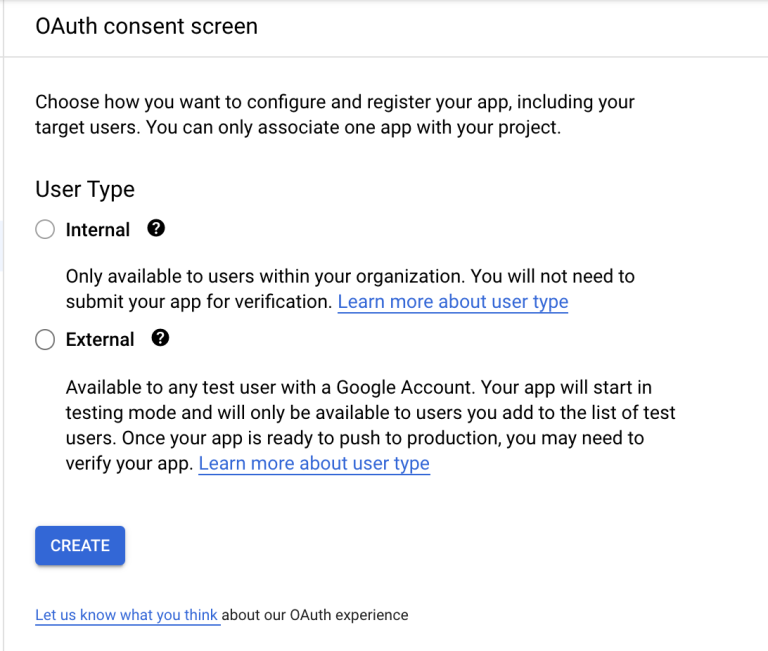
-
If you’re doing this with an account that is part of an organisation’s Google Workspace, you can select internal, however if you’re not you’ll have to select External. That will create credentials in testing mode, so you won’t have to deal with consent screen. However if and when you decide to make this production ready, you’ll have to verify your app, which you can learn more about here.
-
Having done that, you can now create a key for your service account. To do that, go to the Keys tab and click on Add Key, then Create new key.
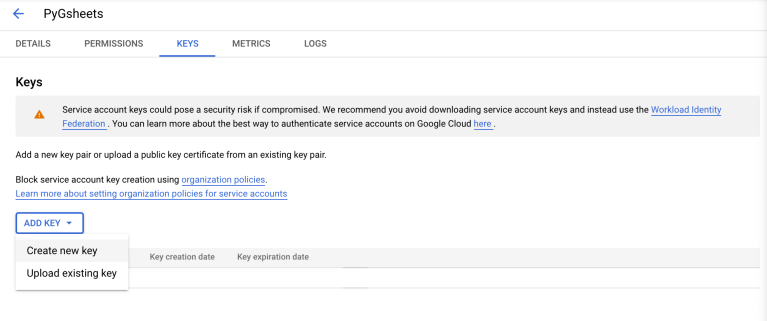
- Select JSON in the popup that opens. That will download a json file with the private key for your service account.
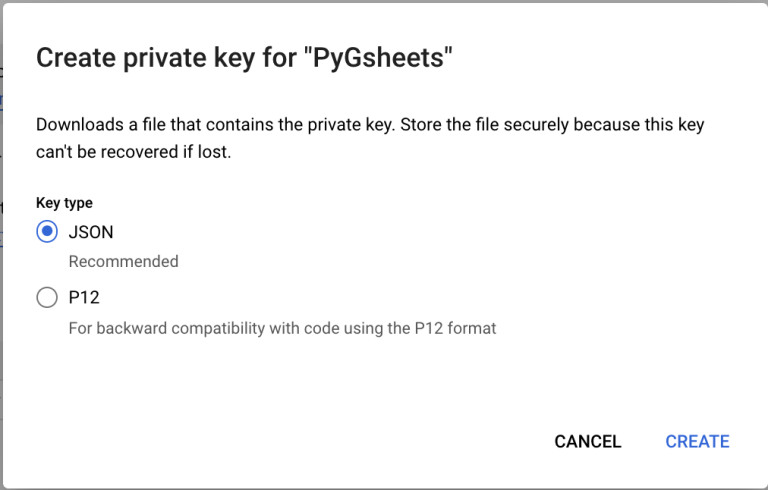
I’ll be renaming the downloaded json to “client_creds.json”. The last thing you’ll need to do is take the service worker account from this json, which will be in the key “client_email”,

And add this to your google sheet, similar to how you’d share it with any other account.
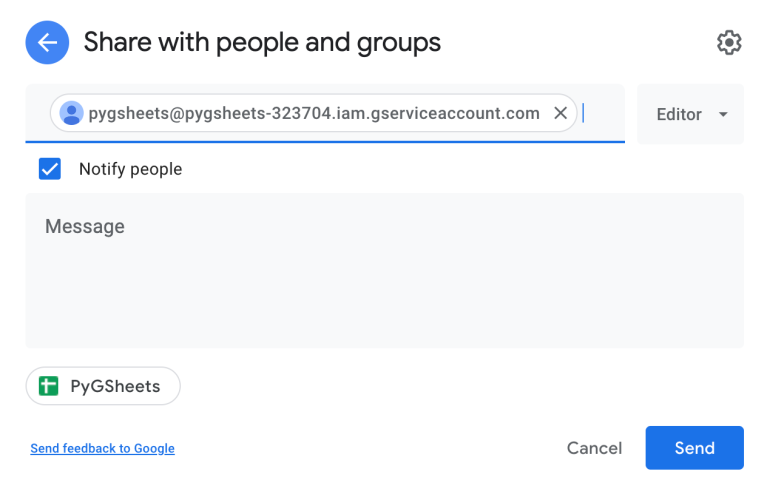
And with that, we’re done.
Phew! That was quite a lot to get it setup. Thankfully you need do it only once and now we can move onto the real reason you’re here. Show me the code!
To get started, you’ll need two packages, that you can get from pip, either directly in your machine or in your virtual environment (I’ll recommend the later, but hey! remember the title? so I won’t blame you for going with the former).
pip3 install gspread
pip3 install oauth2client
Now we can truly begin by importing gspread and ServiceAccountCredetials from oauth2client. We’ll also be importing Pretty Print as we’re going to be handling dictionaries a lot.
import gspread
from oauth2client.service_account import ServiceAccountCredentials
import pprint
First we’ll create a scope with https://spreadsheets.google.com/feeds and https://www.googleapis.com/auth/drive, as well as the credentials using this scope as well the contents of client_creds.json. Using this credential, we’ll create a client with the authorisation to access the google sheets.
scope = ['https://spreadsheets.google.com/feeds', 'https://www.googleapis.com/auth/drive']
creds = ServiceAccountCredentials.from_json_keyfile_name('client_creds.json', scope)
client = gspread.authorize(creds)
Getting access to the worksheet then is just matter of one line. (Well, two here, but you get the gist)
SHEET_NAME = 'PyGSheets' # Name of the sheet
SHEET_NO = 0 # Index of sheet, starting from 0
sheet = client.open(SHEET_NAME).get_worksheet(SHEET_NO)
Or you can get the worksheet by name
sheet = client.open(SHEET_NAME).worksheet(NAME_OF_INDIVIDUAL_SHEET)You can now use this sheet instance to do all the basic CRUD operations (put a pin in this) in that particular sheet.
Creating new data
You can insert data into your spreadsheet in many different ways.
- You can insert an entire row at a time.
row = ["This", "row", "was", "inserted", "using", "python"]
index = 5 # This is the index of row, starting from 1
sheet.insert_row(row, index)
- While there is no analogous function to insert_row for columns, you can use insert_rows and insert_cols, which takes a 2-D list of values, and a starting index to update.
column = [
        ["This", "column", "was", "inserted", "using", "python"],
        ["This", "column", "was", "also", "inserted", "using", "python"],
            ]
index = 5
sheet.insert_cols(column, index)- There is also update_cell for granularity of a cell, or the big daddy method batch_update, but we’ll come back to those in a bit.
Reading data
- You can get all the records in a dictionary form by using get_all_records. PPrint comes real handy when dealing with the results.
sheet_data = sheet.get_all_records()
pp = pprint.PrettyPrinter()
pp.pprint(sheet_data)
- You can also get the values of of individual rows and columns.
row = 1 # Starting from 1
col = 1 # Starting from 1
row_values = sheet.row_values(row)
col_values = sheet.col_values(col)- Or you can drill down the granularity of a cell with
row = 1  # Starting from 1
col = 1  # Starting from 1
cell = sheet.cell(col=col, row=row)
This will return a cell object, that gives you the position of the cell in spreadsheet as well. If you’re just after the value, you can use the .value attribute instead
cell_value = sheet.cell(col=col, row=row).valueUpdating Data
- You can update a cell, whether pre-populated or not with update_cell
row = 1 # Starting from 1
col = 1 # Starting from 1
value = "Value"
sheet.update_cell(row, col, value)- You can also update a range of cells together with update_cells
cell_list = sheet.range('A1:A7') # Create a range

for i, cell in enumerate(cell_list):
    cell.value = 'Value' + str(i + 1)

sheet.update_cells(cell_list) # Update cells- Or you can use the big daddy of updating, batch_update
body = [
    {
        'range': 'A1:C2',
        'values': [['a', 'b', 'c'], ['e', 'f', 'g']],
    },
    {
        'range': 'A3',
        'values': [['e', 'f', 'g']]
    }
]

sheet.batch_update(body)
With batch_update, you are not just limited to updating values, but giving cells formatting as well.
Deleting data
Just as with insert_rows and insert_cols you can use delete_rows and delete_columns to remove a range of rows and columns from the sheet.
start_index = 1 # Starting from 1
end_index = 1 # Starting from 1
sheet.delete_rows(start_index, end_index)
Doing fancier stuff
You are not just limited to tinkering with data with gspread. You can add new sheets, while specifying number of rows, columns and even index.
SHEET_NAME = 'PyGSheets' # Name of the sheet
instance = client.open(SHEET_NAME)
NAME_OF_NEW_SHEET = 'New sheet'
no_of_rows = 100
no_of_cols = 100
index = 0  # Starting from 0
instance.add_worksheet(NAME_OF_NEW_SHEET, no_of_rows, no_of_cols, index)
You can also format cells with format method.
sheet.format('A1:B1', {'textFormat': {'bold': True}})There’s so much that can be done here, but I’ll leave it to you to find out the what’s and how’s.
Here’s a crazy idea . . .
Let’s say you have a automated task set to run periodically, and you could really do with historical data for that task, then slipping in a script that batch updated the results into a Google sheet could be the perfect solution.
This could also allow you to setup a automated pipeline to report on the historical trend of the task by collating data back from the sheet.
Here’s an even crazier idea!
See the order of the titles. They’re very intentional. The crazy idea being if you’re looking to make a simple internal app and aren’t worried too much about throughput, you can just as well use Google sheets as your database.
Of course if you’re using a free account, you’ll run into the usage limit that Google has in place, but that refreshes every 100 seconds, and batch_update and get_all_records are your friend in feeling with this limitation.
Hopefully this inspires you to try your hand out with Python and GSheets, or idea on how to apply this to make something in your job a little easier.
For a quick reference to all the methods I discussed here, check out this gist. Here are the links: Automate the Boring Stuff, Google Sheets Feeds, Google Drive Auth, gspread Documentation, Google Sheets API Limits, Gist Reference.